Maths, Metal, Mandelbrot, and SwiftUI

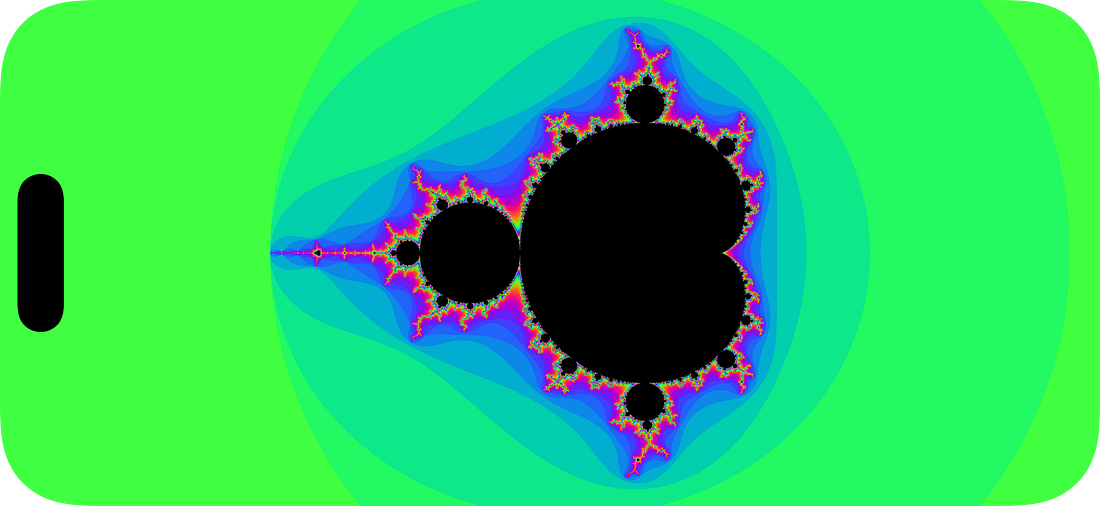
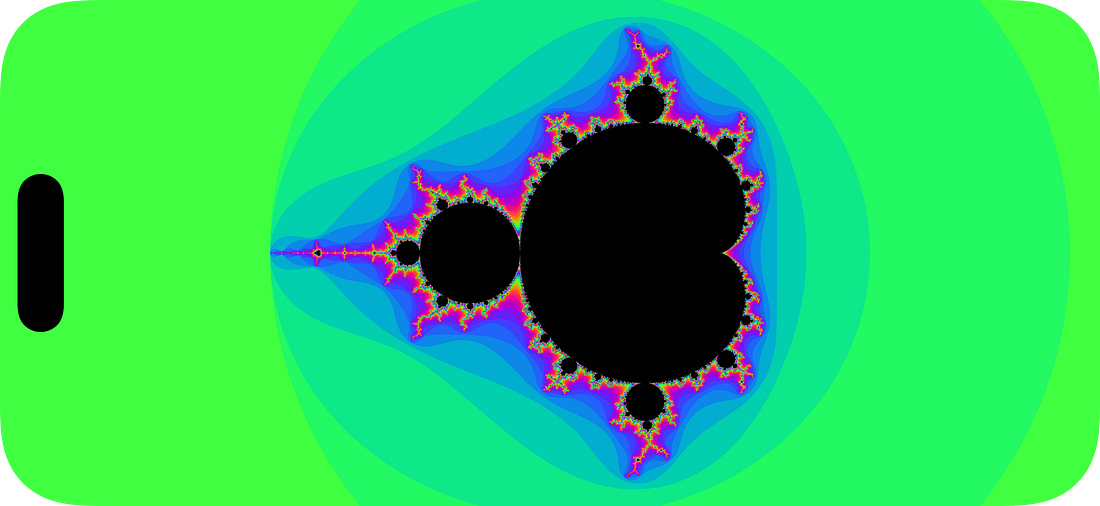
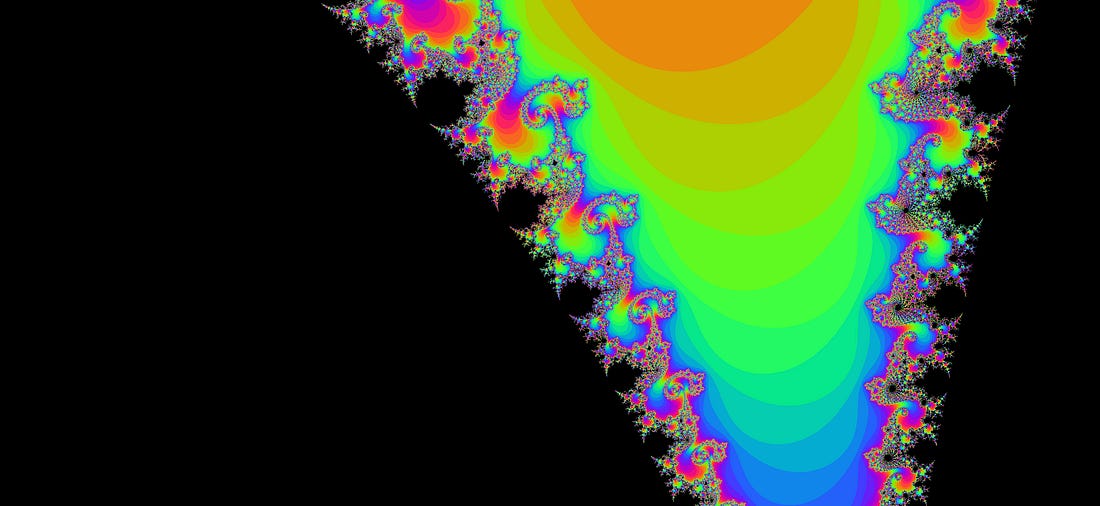
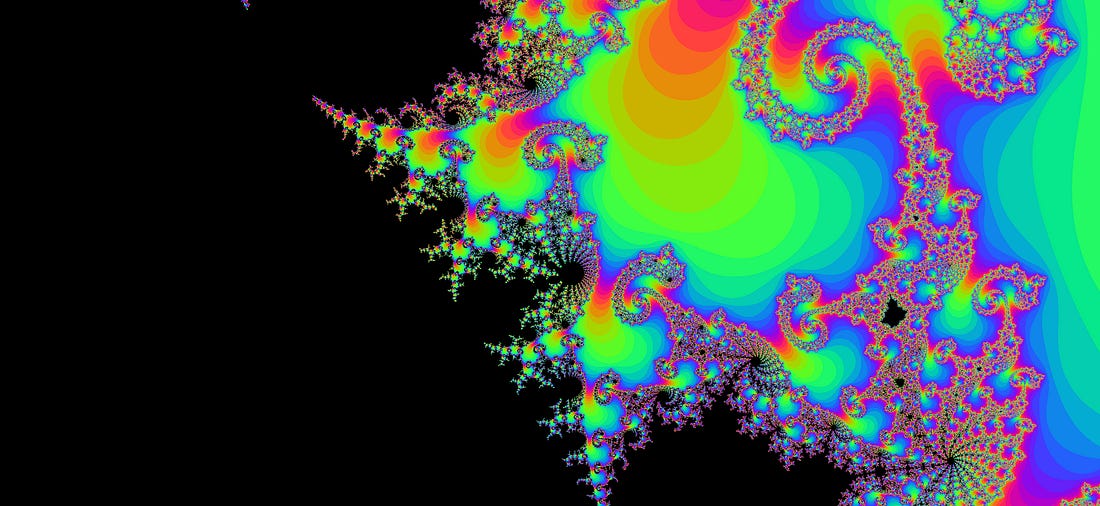
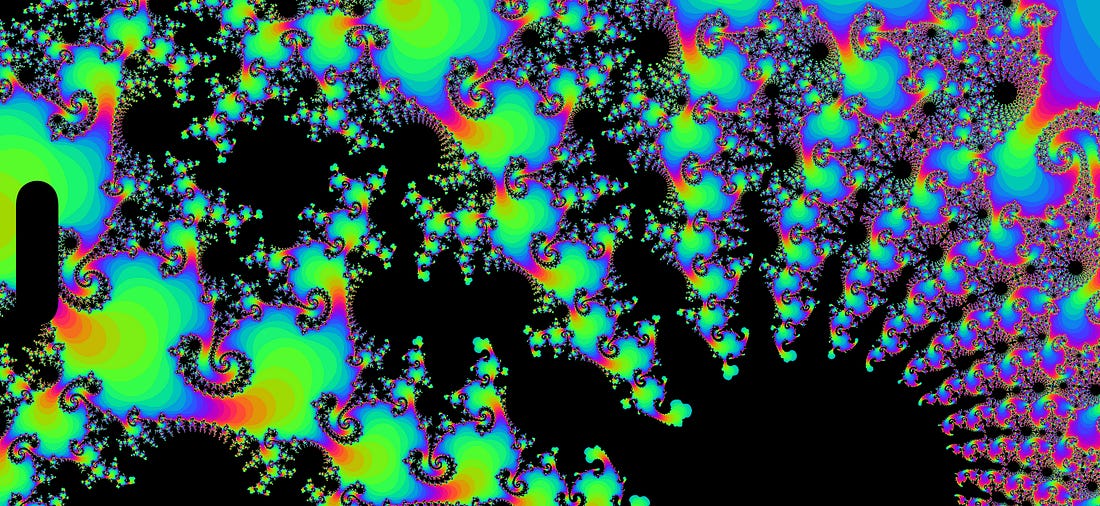
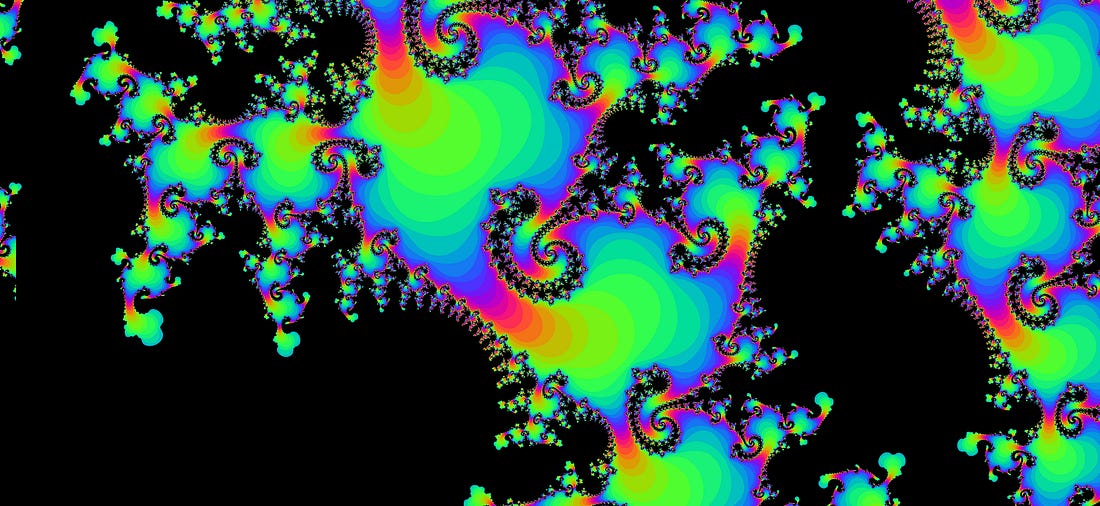
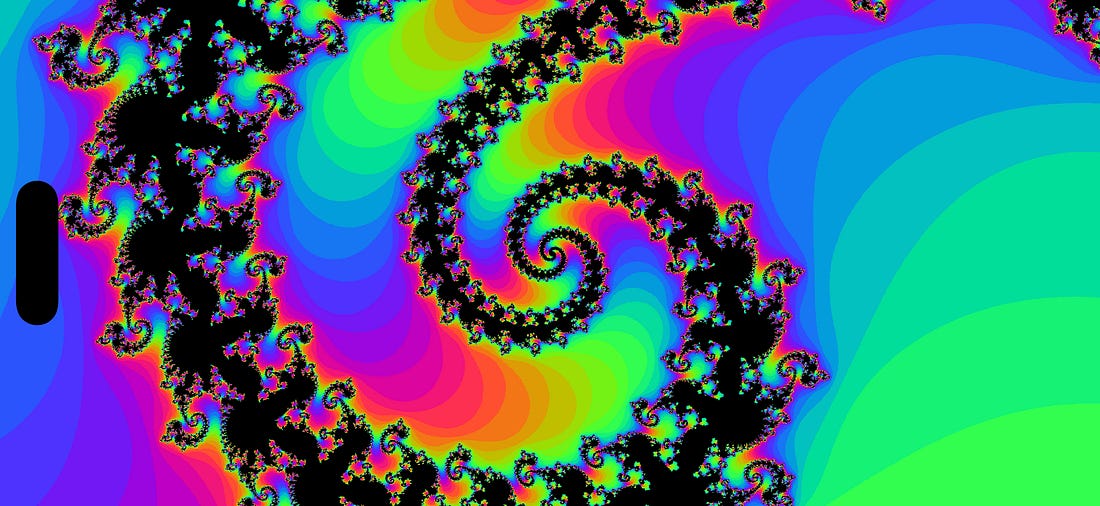
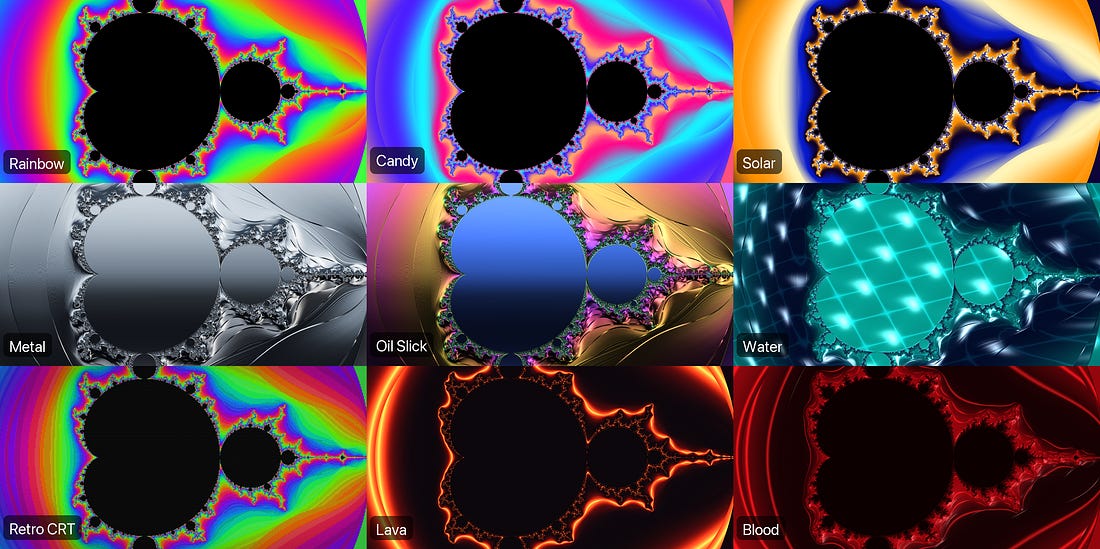
I love the chance to play around with Metal shaders. You can go from an incredibly simple rule, sometimes even just a Tweet-sized line of code, and get remarkable graphical complexity. Xor, the shader God, is a generational talent when it comes to this, with code-golfed tweet-sized shader worlds. But, mathematically, there is only one GOAT: Benoit Mandelbrot, who coined the term “fractal” and pioneered their exploration with computers. His eponymous Mandelbrot Set is the coolest bit of pure mathematics ever imagined. It creates a shape with infinitely recursive fine structure, from one simple (or, perhaps complex) rule: 
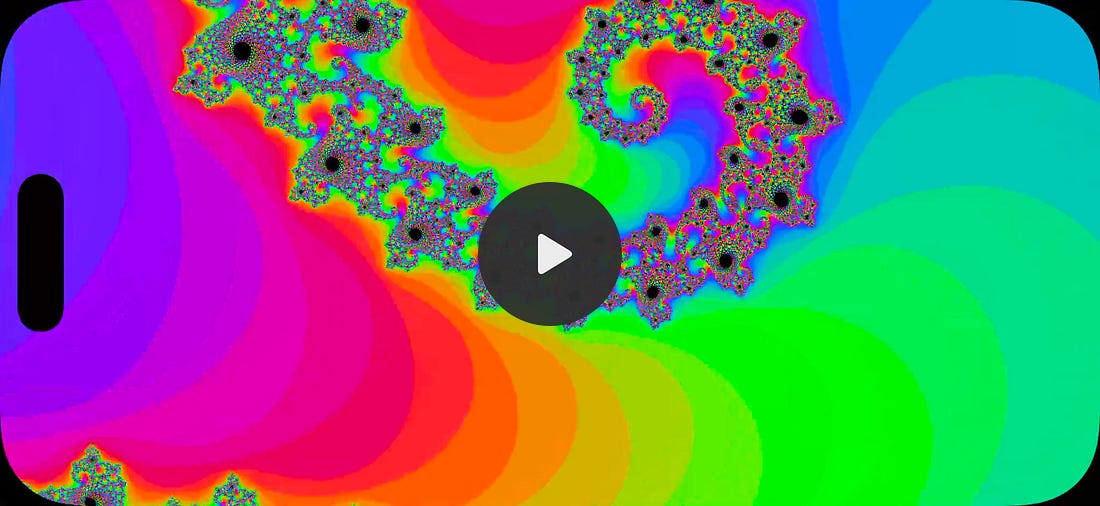
I’ll get into the mathematics later: this post takes you through building your own fully-functional Mandelbrot set explorer app using SwiftUI and Metal:
That’s it. Really. And I promise not to ‘the rest of the owl’ you at any point. Sponsored Link
10 Simple Steps1. Setting up the Metal projectMetal is incredibly well suited to drawing fractals, because the GPU can crunch thousands of pixels in parallel. Each pixel is associated with a different value on the x and y axes of our number line, and can be computed independently. You know the drill.
In Xcode, add a new Metal file named Mandelbrot.metal.
Metal is a platform-exclusive language based on C++. A few important things to note:
We can apply our shader to a SwiftUI view using ShaderLibrary.mandelbrot().
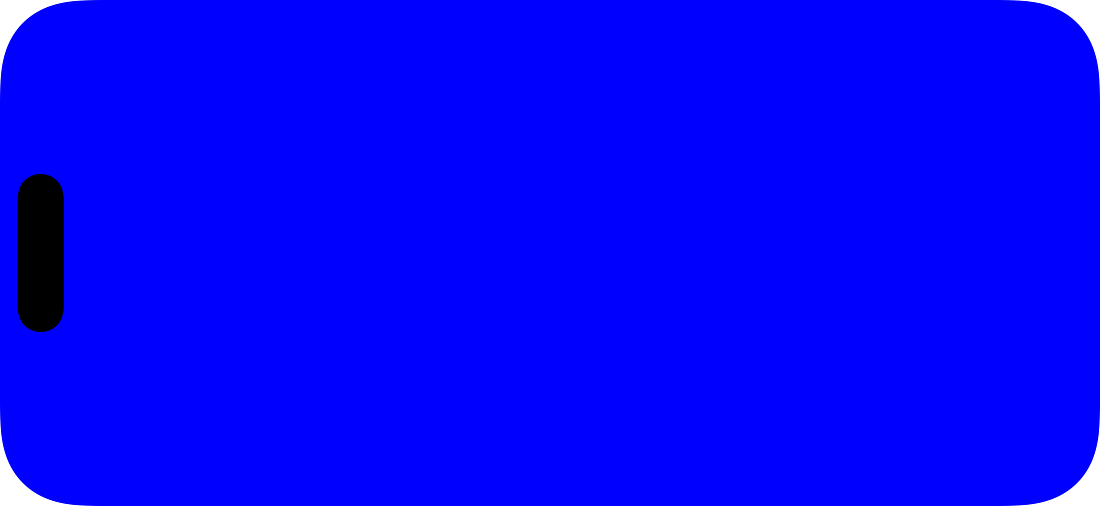
Hey Presto, our shader works!
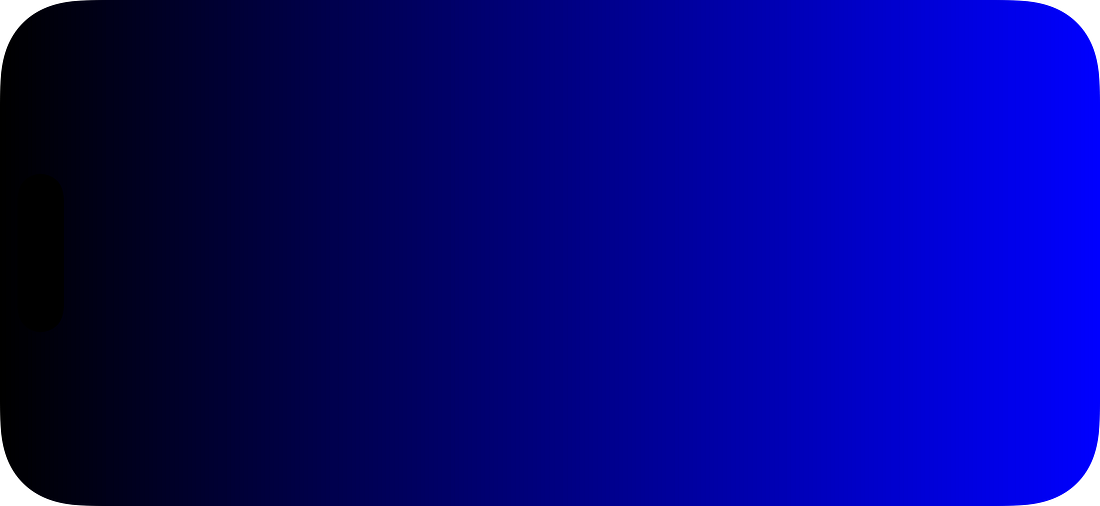
It almost makes you want to cry happy tears. Back in the day, you would have to muck around quite a bit with build settings to get the shader library to behave. 2. Utilising position in our shaderLet’s spin our wheels for a couple of steps and make sure we can manipulate our shader in a few simple ways. Let’s apply the x-value of position to the blue value.
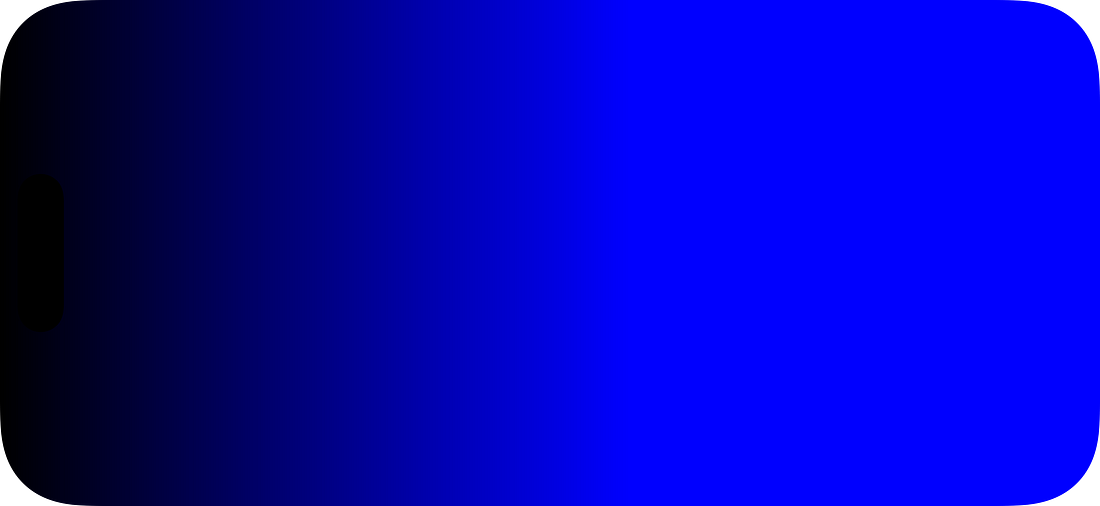
Now the B channel is modulated by horizontal position.
This is neat, but it randomly cuts off into “pure blue” quite early. 3. Applying the physical boundsSwiftUI allows us to pass the bounds of our view or shape into a shader as an argument. Like so:
This boundingRect supplies 4 numbers: (x position, y position, width, height). You know by now this argument will be a float4.
bounds.x is the left edge of our bounding rectangle, and bounds.z is the width. Instead of guessing, now our blue value is proportional to the pixel’s horizontal position along the whole size of the bounds. Now we very smoothly apply the blueness across our view’s width.
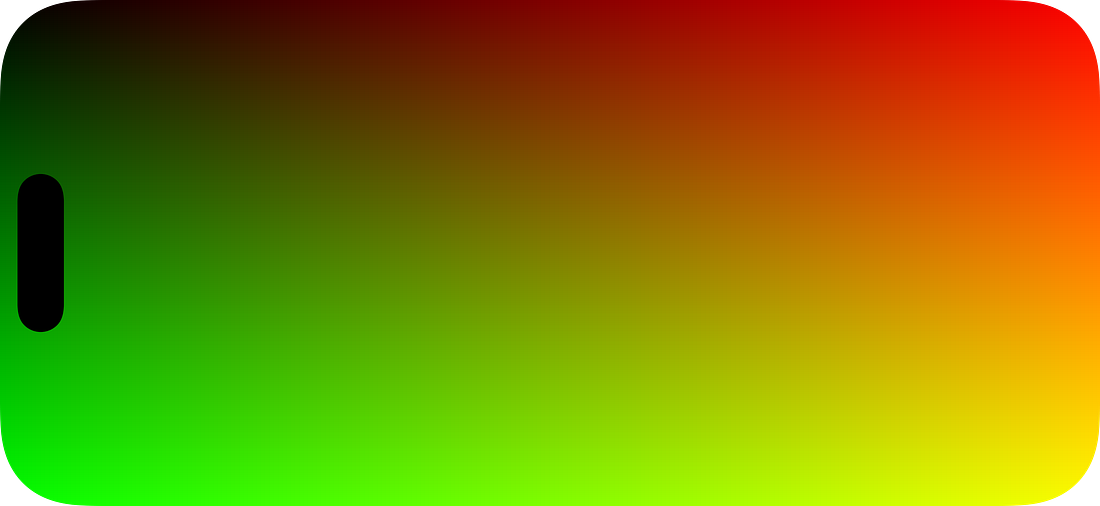
Finally, we can also work in 2 dimensions:
“Normalising” means tuning values to between 0 and 1, so we can get a valid RGB value from each screen pixel position.
Metal is full of syntactic shortcuts: here, we create a float2 for horizontal and vertical values simultaneously by applying float2 in each step of the equation: bounds.xy is a float2 of its x (horizontal origin) and y (vertical origin), whereas bounds.zw is a float2 of the z (width) and w (height) values. 4. Our first Mandelbrot iterationLet’s get serious now and introduce complex numbers. If you get through this step, the rest is easy. Stick with it 🫡. Imaginary numbers are made by square rooting a negative. If this is your first time learning about these, woah, crazy, right? 
A complex number z is made by combining an “imaginary” number with a “real” number: 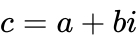
To make a Mandelbrot set, just run this function on all values of c, recursively:
To draw the set, we apply this function to every point (or, in our case, every pixel position) on the complex plane. This is c. The result of step n is zₙ. The result of the next step is zₙ₊₁. For every step, we square the result of the previous step, then add c. %255E2%252B(1%252Bi)%2520%253D%25201%252B3i%2520%255C%255C%250Az_3%2520%2526%253D%2520(1%252B3i)%255E2%252B(1%252Bi)%2520%253D%2520-7%252B7i%2520%255C%255C%250Az_4%2520%2526%253D%2520(-7%252B7i)%255E2%252B(1%252Bi)%2520%253D%25201-97i%250A%255Cend%257Baligned%257D%26version%3D9)
Who ever said maths wasn’t fun? Some numbers, like 0.1 + 0.1i, will stay small through iterations and never escape. These are in the Mandelbrot set. Other values of c, like in the above example, will keep growing bigger and bigger as you square them, infinitely. These are not in the Mandelbrot set. OK. Back to the shaders: our first iteration:
First, we set up the values of c and z, with float2 used to represent complex numbers:
Next, we perform our iteration: we compute z² + c. A simple mathematical relationship allows us to, functionally, ignore the imaginary-ness of the complex number: %255E2%2520%253D%2520a%255E2%2520%252B%25202abi%2520%252B%2520b%255E2i%255E2%2520%253D%2520(a%255E2%2520-%2520b%255E2)%2520%252B%2520(2ab)i%26version%3D9)
This relationship allows us to compute the real component and the imaginary component of z as another simple float2. Finally, we can apply another simple mathematical rule here: any complex number with length (magnitude) over 2 will escape to infinity, and so isn’t in the set, and we return white. Any other complex number might be in the set and we return black.
But we might need a few more iterations to find out the truth. 5. Running a few iterations
So we’ve got a big black circle. Let’s see what happens to it when we do a few more iterations. Like I promised, this bit is really easy: We just take our existing calculation for z, and we loop over it six times.
The one clever nuance here is thus: we can save quite a bit of computation per pixel by allowing early escapes: As soon as the length of z exceeds 2, we can stop iterating and return white, meaning “definitely not in the set”.
I can start to see something familiar take fractal… I mean, take shape. I’m pumped. This article has been in the works for years, I’m sure you can wait another few weeks to read the whole thing. If not, you can also read it for free: Paid subscribers get tons of goodies: ⚓️ Access my full library of 50+ paywalled articles 6. More and more (and more) iterationsThis step isn’t strictly necessary: you can just whack a massive number onto the iteration limit and get it over with, but it’s also very interesting, so deal with it. We can pass arguments into our shader function as well. Arguments that can even be determined by a user… let’s adjust our view a little.
I hope I don’t need to explain sliders to you in SwiftUI. The shader function too gets a fairly simple update.
FYI, you aren’t going crazy: as well as making the iteration limit configurable here, I snuck some very dull viewport geometry into the shader.
Thus each pixel position in our view’s bounds neatly maps to a starting point for c along the complex number plane. Let’s play with the slider now. 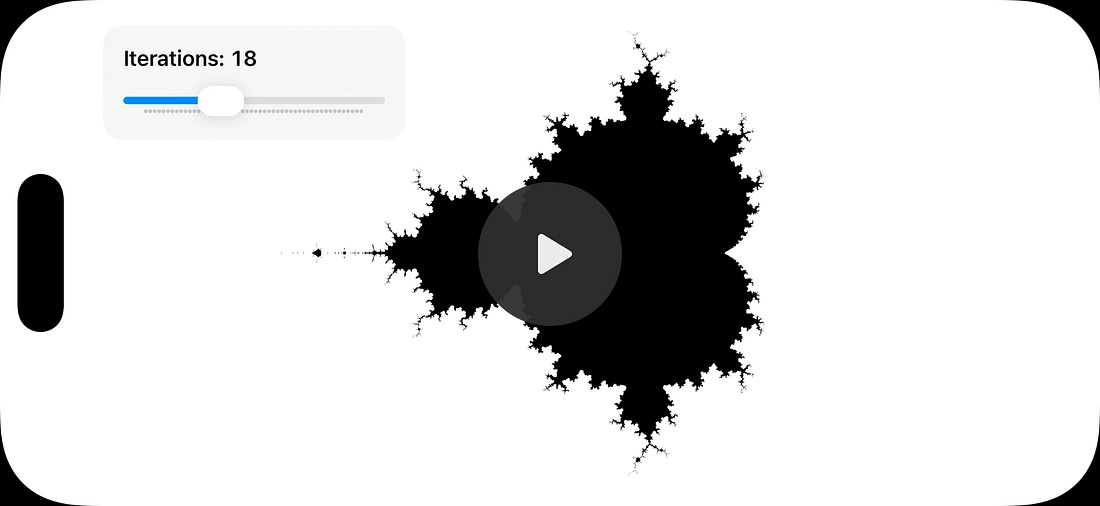
7. Colouring the escaping pixelsWe now have something, to speak momentarily like Claude, undeniably Mandelbrot-shaped. But is it Mandelbrot coloured? You may be curious: how is it that a set of numbers, either “in” or “not in”, is always coloured in such crazy ways in those trippy Mandelbrot zoom videos? It’s because we just need one more rule: colour a number based on how quickly it goes to infinity.
First let’s add a function that takes a number of iterations and outputs a half3 representing RGB values from 0 to 1.
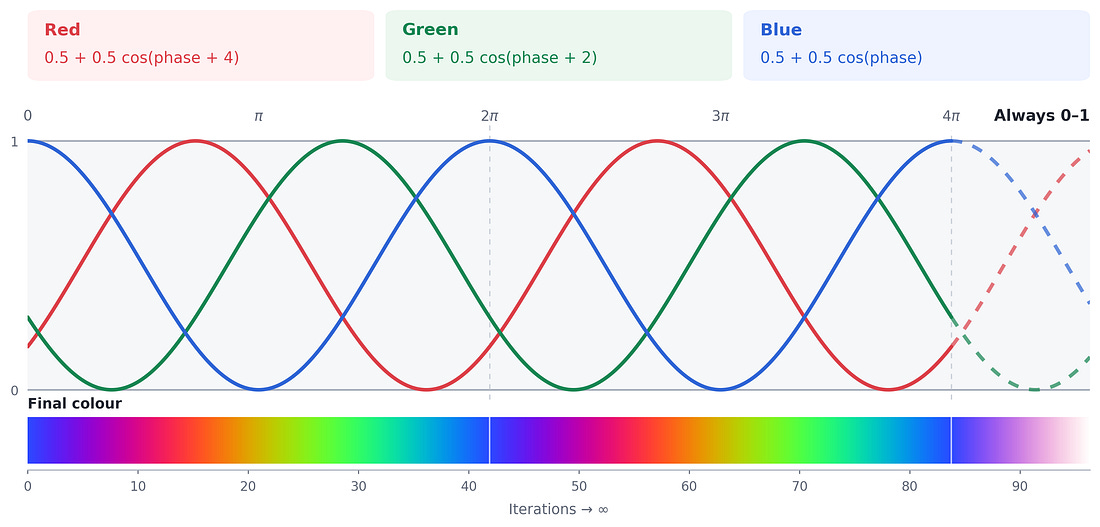
Long story short, cos(x) is some value from -1 to 1. So by taking 0.5 + 0.5 cos(x), we create a normalised value from 0 to 1 that maps to an RGB value. sin(x) works too, if that’s more your style. Each RGB component is moved a little out of phase with the others (e.g. cos(phase + 4)), so as iterations increase, the return value goes from blueish, to reddish, to greenish, and back again.
The big win from a trigonometric function is that these keep repeating: the further you zoom into the fine structures at the “edges” of the Mandelbrot set, the more iterations something takes to escape to infinity. So the palette function works just the same no matter how far we zoom. So the first 1-42 iterations go from blueish, to reddish, to greenish. But then once you zoom down to where it takes, say, 100,000 iterations to escape, the function still works: greenish, to blueish, to reddish. Forever.
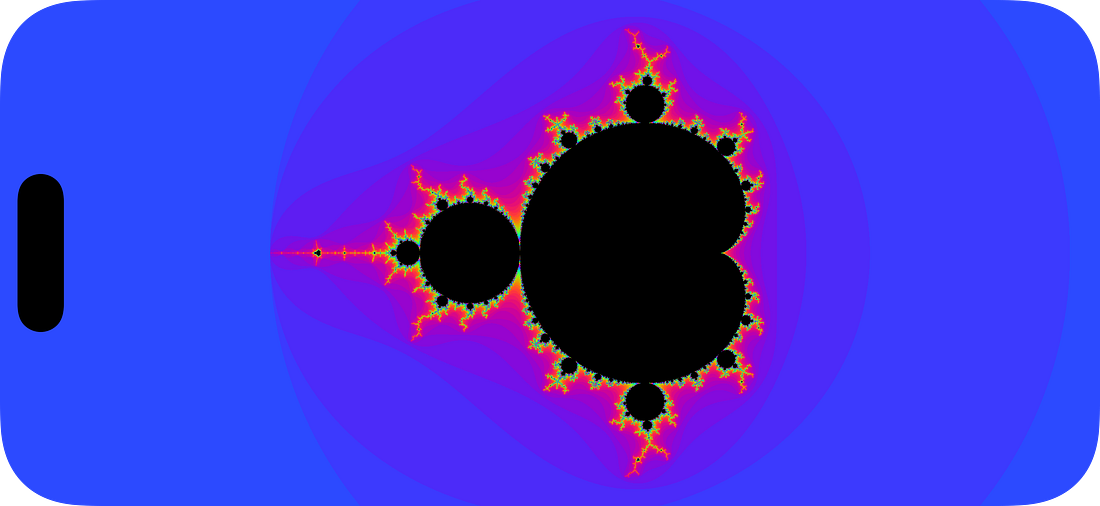
Now we’ve locked the max iteration count to 256 to get a fine structure we can begin to zoom into. Here, we still break out early if we start to escape, but instead of painting pure white, we apply our new palette.
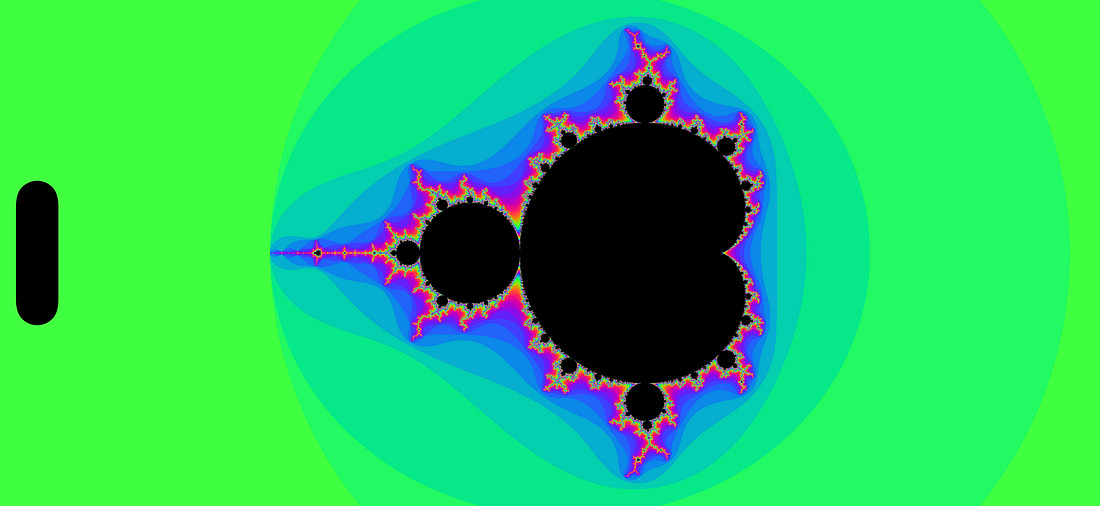
It’s… it’s beautiful. Already, we can see the mathematics taking shape… quite literally, I guess. Oh, also, as long as you get oscillation across each colour component, the numbers in the palette function are kind of arbitrary:
I prefer to space these out evenly, using multiples of M_PI_F. To get the neatest spacing, and therefore the most vibrant colour palette, I space the colours by 2π/3.
You know what, everyone always gives blue outsides to their ‘brots. This looks way better. Let’s keep it. 8. Giving SwiftUI a cameraWhat do we actually have left to do? We’ve got the entire mathematical formulation built, we just need to add the ability to 1) move around the fractal, and 2) move into the shape. Conceptually, this is effectively adding a videogame camera to the app, storing both a location and a zoom level. The complicated shader work is over. The rest of our code doesn’t even touch the iteration loop or pixel colouring logic: in fact, everything else we’re looking at just affects the initial value of c. ⚠️ Warning: this particular step is super boring. To start building our camera, we just need to store the centre property and pass it to our shader. This allows us to map the viewport centre to a complex coordinate.
This property is added to our Mandelbrot shader’s arguments, and used as the starting point for computing the initial value of c, that is, the complex number associated with a specific pixel position.
I’ll save you scrolling up, we’ve done something really simple: we’ve taken this one line out of the shader, and passed it through SwiftUI instead.
And, the result is… nothing different from before. Don’t say I didn’t warn you.
9. Dragging around the screenWe’re nearly there. One more until the big one. We just need to make the centre property mutable in SwiftUI by implementing a drag gesture.
Hopefully nothing new here: we add a gesture, and update the centre property passed into the shader as it changes by taking away the (scaled) translation from the original center value. We’re scaling the translation by dividing the horizontalSpan of 5.5 from before (the number line from -3.35 to 2.15), by the number of screen points, so we can scale the screen’s points to “units” on the number line. I computed viewWidth, the number of points along the screen, using onGeometryChange because GeometryReader is a cesspit of snakes which I try to avoid at all costs 🐍. Now we can start to dynamically shift the camera about with a finger. 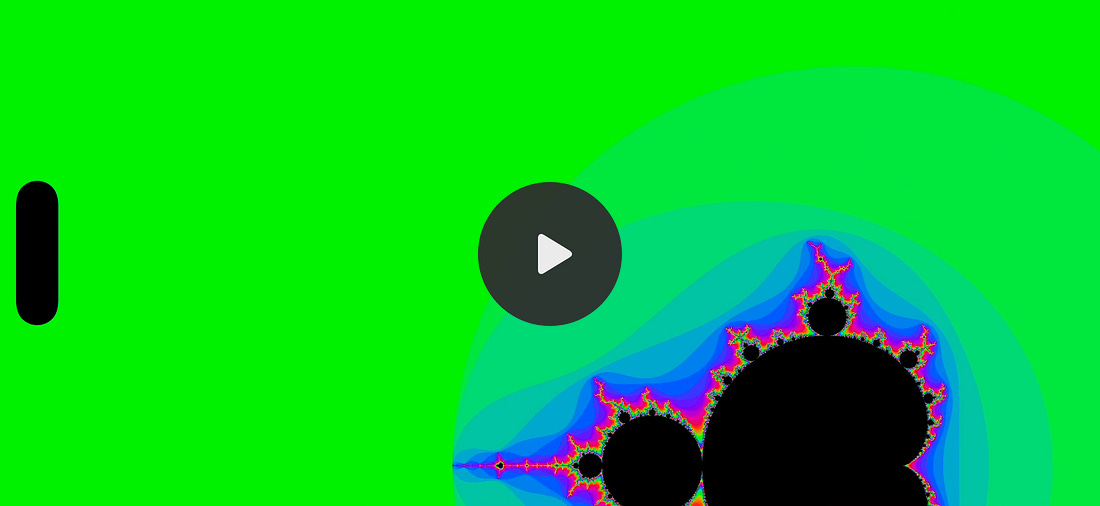
Ok, you ready for the big finale? Things are about to get bonkers. 10. The Mandelbrot Zoom™I saved the best to last. This is what a Mandelbrot app is all about. Victory lap. Cheers for sticking with it. To magnify our fractal, we need to create a pinch-to-zoom gesture, and pass the zoom level to our shader.
Since the gesture is interactive, we need to store both a currentSpan to store the “original” value and horizontalSpan to track the “live” value during a pinch gesture, overwriting the original value onEnded. You can also handle this with @GestureState, but the code ended up way harder to follow. Our centre-point computation in the DragGesture now uses this dynamic span from magnification to calculate unitsPerPoint. To implement the pinch gesture, we use the run-of-the-mill simultaneousGesture API to add an additional gesture to the view, MagnifyGesture, which tracks a magnification multiplier interactively. A magnification of 2 halves the visible horizontalSpan, zooming into the fractal. This horizontalSpan property represents the length across the number line traversed by our camera’s zoom level. Again, none of the maths changes. All we’re doing is extracting our hardcoded horizontalSpan from before and making it an argument to our shader.
We pin the horizontalSpan between 5.5 units (at max zoom-out) and 0.00001 (for max magnification). You’ll see why in a moment.
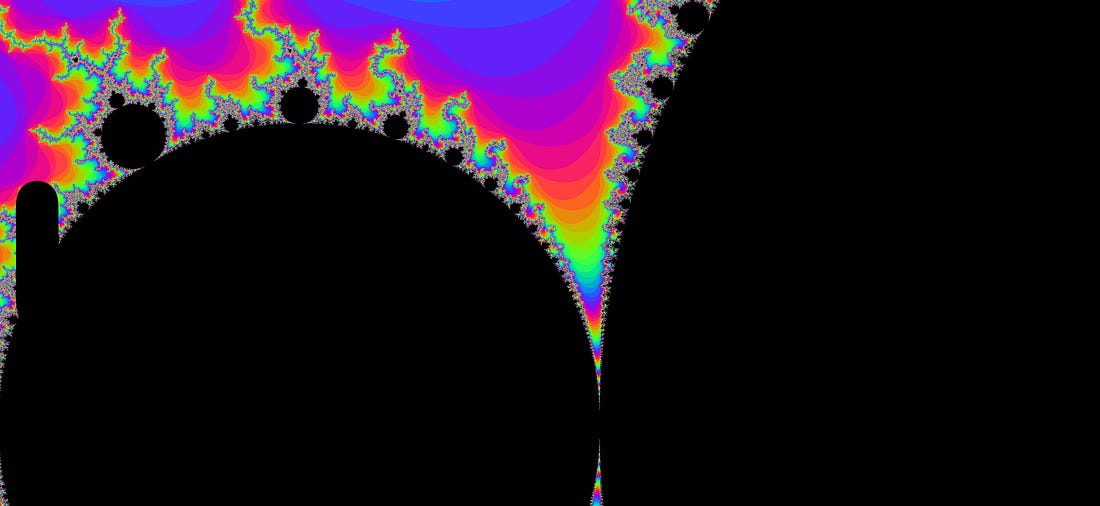
Totally mesmerising, until… I guess until it isn’t.
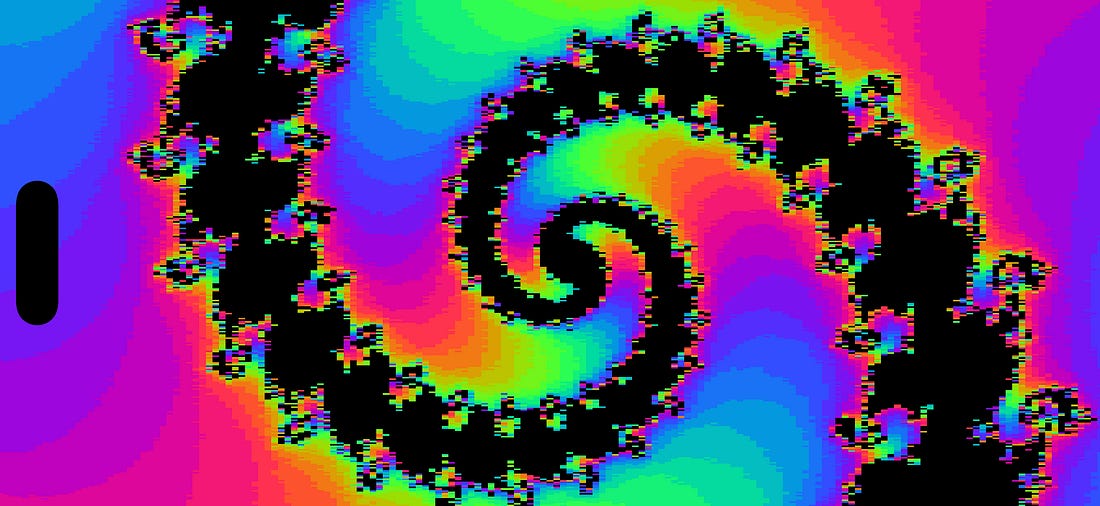
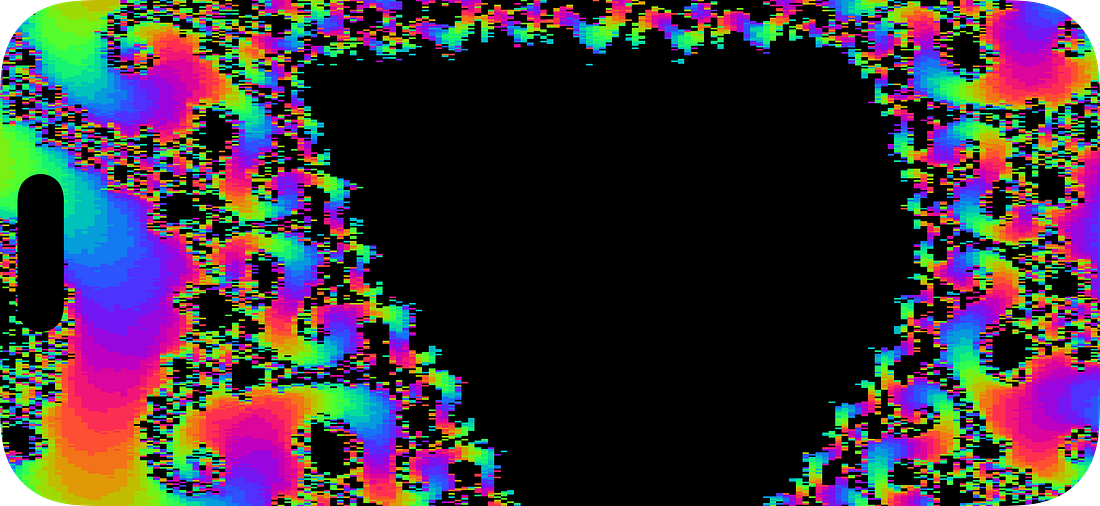
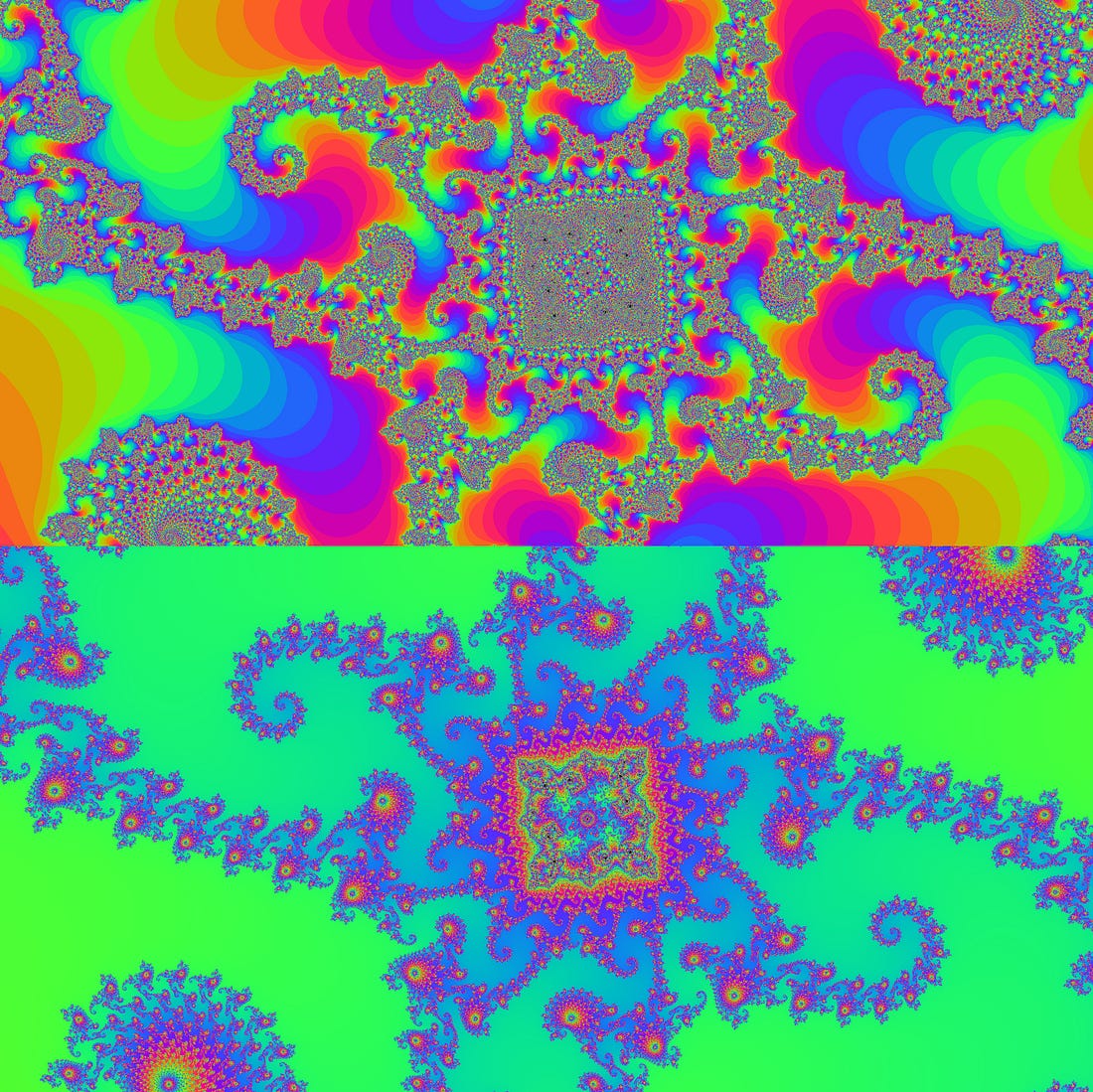
The end of the lineThat minimum horizontalSpan across our number line is 0.00001 because, at this point, we run out of precision when performing recursive complex analysis with float32. Once we zoom in far enough, with a tiny horizontalSpan, neighbouring pixels at this precision round out to the same complex number, giving us pixellated rectangular blocks at this limit.
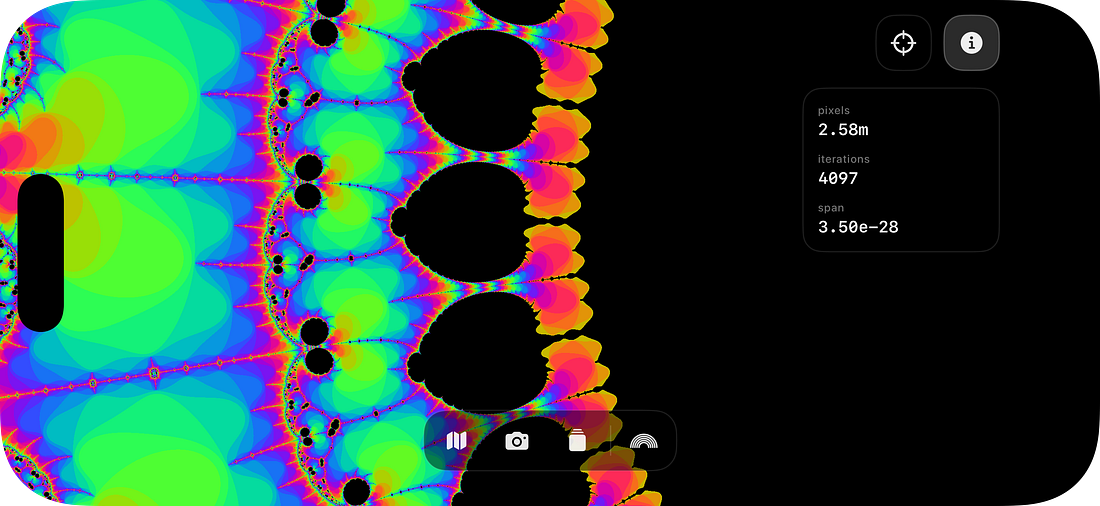
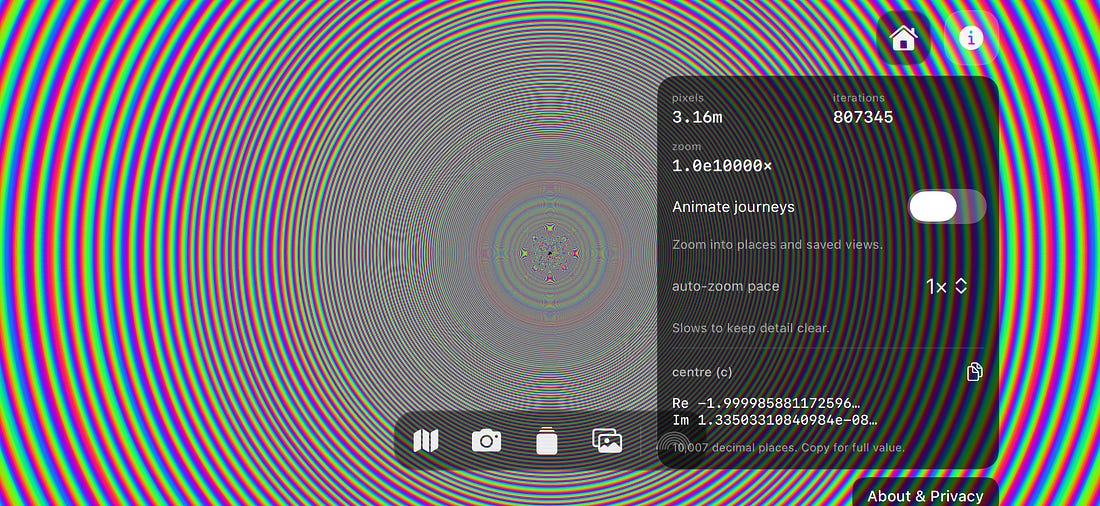
This is the end of the line for the neat, code-golfed, 90-lines-total app we set up today. But for those willing to ask nicely for thousands more lines of code, we can try out some more computationally elaborate solutions. There’s a mathematical trick called perturbation which allows us to zoom to arbitrary levels of precision without melting the GPU. We can use representations other than float32 (Metal doesn’t have a float64, and if it did, that just kicks the can down the road). We instead store complex numbers as chunks using an array of numbers, allowing for arbitrary precision, and hand-roll* the resulting complex square maths. As we go deeper, we compute one ultra-high-precision “reference orbit” in the centre, and calculate other pixels on-screen as tiny deviations from this reference, which can be done drastically faster.
I almost got through a whole article without mentioning UIKitNaturally, I thought to myself “can UIKit can help polish our app?”. We can actually replace the SwiftUI gestures with a UIScrollView to handle gestures like 1-finger pan, 2-finger pinch, the deceleration physics you know and love, as well as add a million free, invisible, optimisations like “protecting against accidental flings when a pinch ends” and “stopping an accidental pan when one finger in a pinch gesture lifts up first”. Now, it was time to unplug my maths brain and plug in my product brain, and implement a number of neat quality-of-life features.
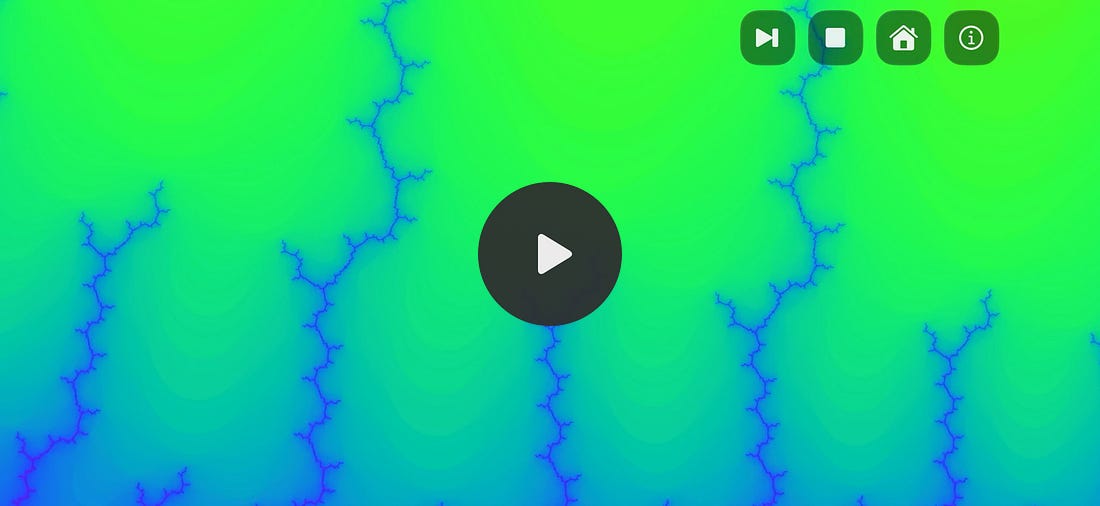
Alright, I reckon we’re done here. Give it a look! Last Orders 🍺This article has been on my agenda for years. I’ve got that special flavour of autism that makes the Mandelbrot set catnip to me. What do you mean that nobody in history has ever seen this edge before? There’s a certain romanticism to it. The Mandelbrot set is the coolest thing in mathematics because it creates infinite complexity from an extremely simple rule: square and add c, recursively. I hope you’ve enjoyed our romp through Metal shaders, from the basics of painting a pixel on your SwiftUI, to our initial Mandelbrot computation, to applying camera semantics to introduce pan and zoom gestures to explore the fractal. I may or may not have gone a little overboard with the subsequent optimisations over the last few weekends, the code from which I will not darken the daylight by sharing. But you’re welcome to download the app! (The name Metal Mandelbrot was taken 🥲) Sponsored Link
Sent from my iPhone
|