Maths, Metal, Mandelbrot, and SwiftUI

I love the chance to play around with Metal shaders. You can go from an incredibly simple rule, sometimes even just a Tweet-sized line of code, and get remarkable graphical complexity. Xor, the shader God, is a generational talent when it comes to this, with code-golfed tweet-sized shader worlds. But, mathematically, there is only one GOAT: Benoit Mandelbrot, who coined the term “fractal” and pioneered their exploration with computers. His eponymous Mandelbrot Set is the coolest bit of pure mathematics ever imagined. It creates a shape with infinitely recursive fine structure, from one simple (or, perhaps complex) rule: 
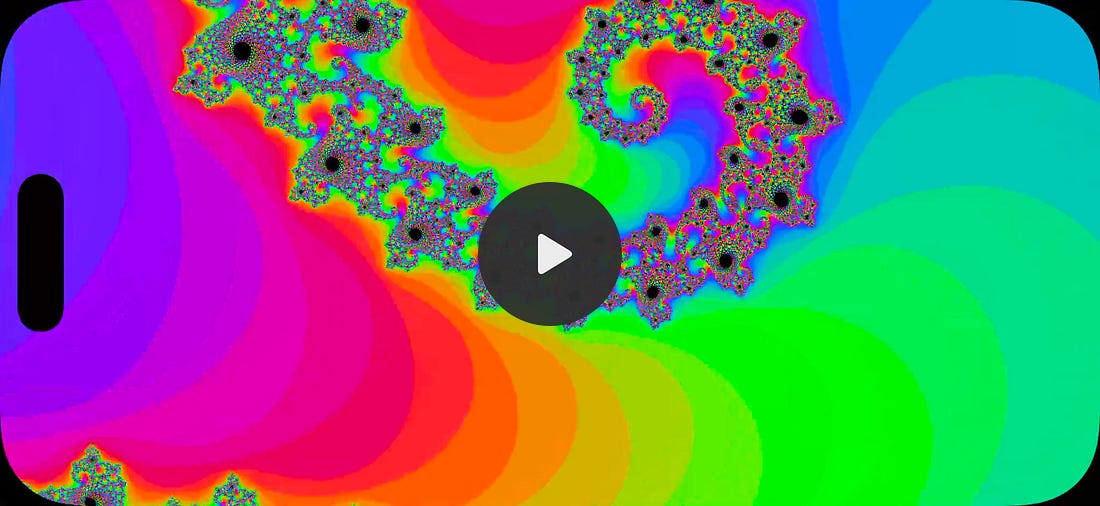
I’ll get into the mathematics later: this post takes you through building your own fully-functional Mandelbrot set explorer app using SwiftUI and Metal:
That’s it. Really. And I promise not to ‘the rest of the owl’ you at any point. Sponsored Link
10 Simple Steps1. Setting up the Metal projectMetal is incredibly well suited to drawing fractals, because the GPU can crunch thousands of pixels in parallel. Each pixel is associated with a different value on the x and y axes of our number line, and can be computed independently. You know the drill.
In Xcode, add a new Metal file named Mandelbrot.metal. Metal is a platform-exclusive language based on C++. A few important things to note:
We can apply our shader to a SwiftUI view using ShaderLibrary.mandelbrot(). Hey Presto, our shader works!
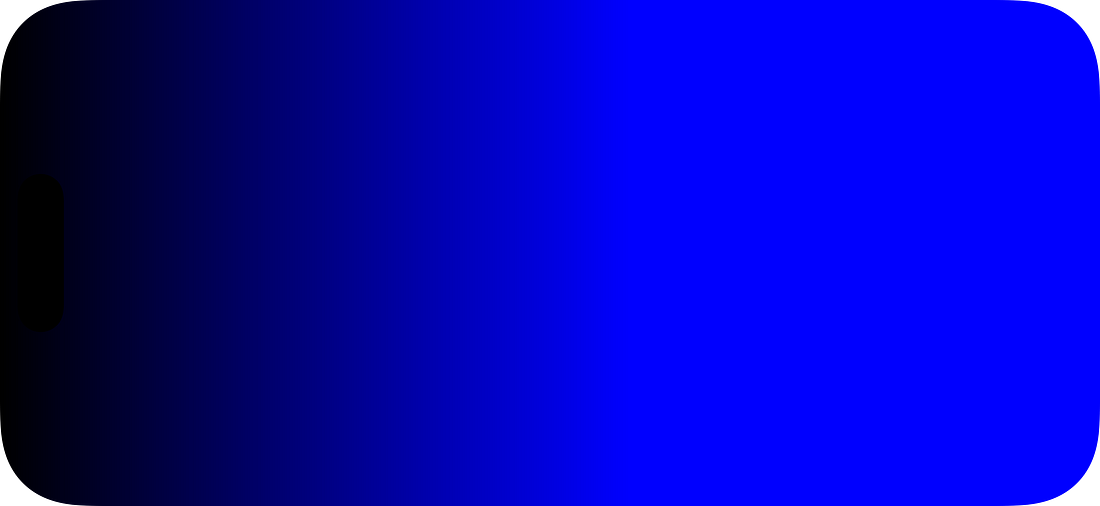
It almost makes you want to cry happy tears. Back in the day, you would have to muck around quite a bit with build settings to get the shader library to behave. 2. Utilising position in our shaderLet’s spin our wheels for a couple of steps and make sure we can manipulate our shader in a few simple ways. Let’s apply the x-value of position to the blue value. Now the B channel is modulated by horizontal position.
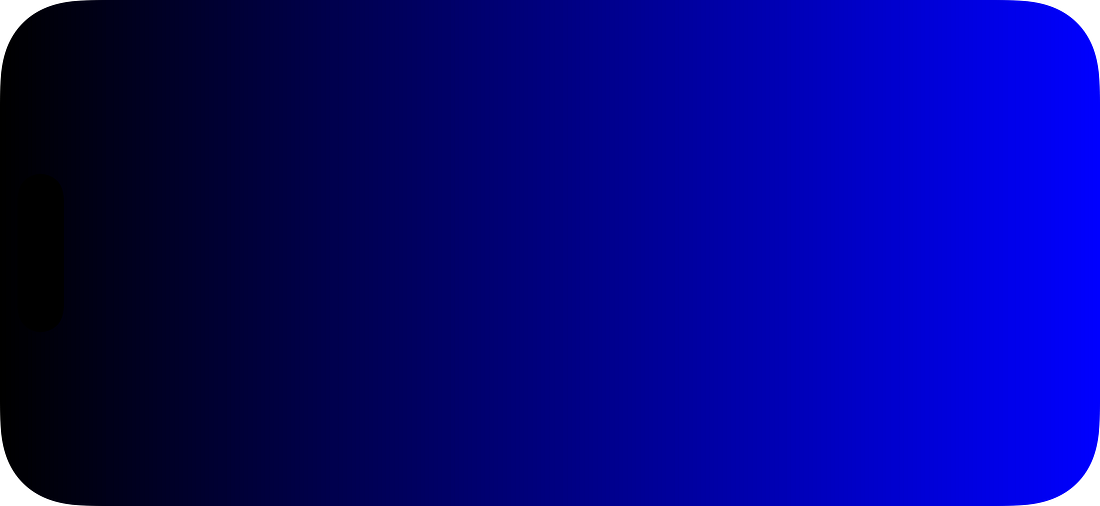
This is neat, but it randomly cuts off into “pure blue” quite early. 3. Applying the physical boundsSwiftUI allows us to pass the bounds of our view or shape into a shader as an argument. Like so: This boundingRect supplies 4 numbers: (x position, y position, width, height). You know by now this argument will be a float4. bounds.x is the left edge of our bounding rectangle, and bounds.z is the width. Instead of guessing, now our blue value is proportional to the pixel’s horizontal position along the whole size of the bounds. Now we very smoothly apply the blueness across our view’s width.
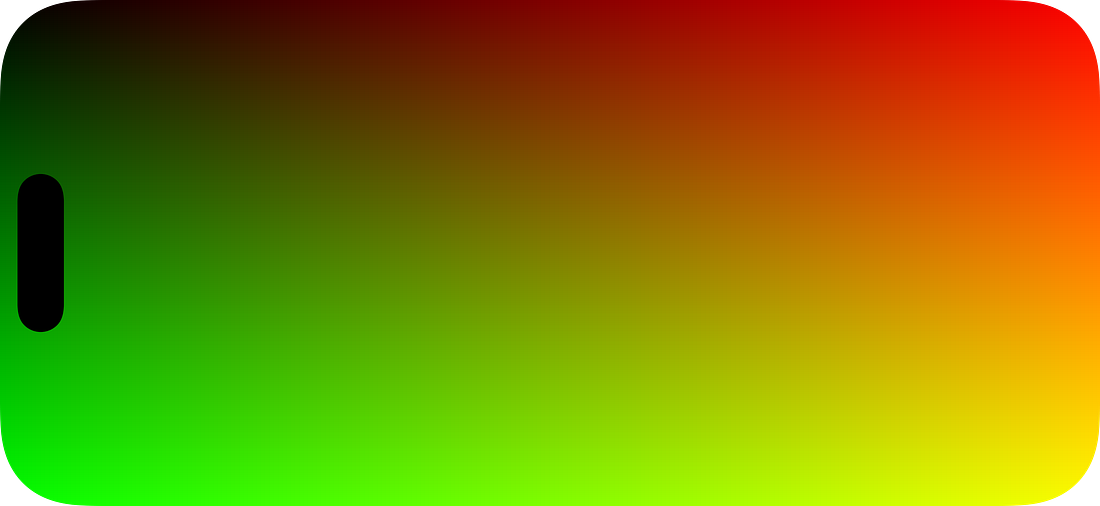
Finally, we can also work in 2 dimensions: “Normalising” means tuning values to between 0 and 1, so we can get a valid RGB value from each screen pixel position.
Metal is full of syntactic shortcuts: here, we create a float2 for horizontal and vertical values simultaneously by applying float2 in each step of the equation: bounds.xy is a float2 of its x (horizontal origin) and y (vertical origin), whereas bounds.zw is a float2 of the z (width) and w (height) values. 4. Our first Mandelbrot iterationLet’s get serious now and introduce complex numbers. If you get through this step, the rest is easy. Stick with it 🫡. Imaginary numbers are made by square rooting a negative. If this is your first time learning about these, woah, crazy, right? 
A complex number z is made by combining an “imaginary” number with a “real” number: 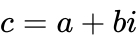
To make a Mandelbrot set, just run this function on all values of c, recursively:
To draw the set, we apply this function to every point (or, in our case, every pixel position) on the complex plane. This is c. The result of step n is zₙ. The result of the next step is zₙ₊₁. For every step, we square the result of the previous step, then add c. %255E2%252B(1%252Bi)%2520%253D%25201%252B3i%2520%255C%255C%250Az_3%2520%2526%253D%2520(1%252B3i)%255E2%252B(1%252Bi)%2520%253D%2520-7%252B7i%2520%255C%255C%250Az_4%2520%2526%253D%2520(-7%252B7i)%255E2%252B(1%252Bi)%2520%253D%25201-97i%250A%255Cend%257Baligned%257D%26version%3D9)
Who ever said maths wasn’t fun? Some numbers, like 0.1 + 0.1i, will stay small through iterations and never escape. These are in the Mandelbrot set. Other values of c, like in the above example, will keep growing bigger and bigger as you square them, infinitely. These are not in the Mandelbrot set. OK. Back to the shaders: our first iteration: First, we set up the values of c and z, with float2 used to represent complex numbers:
Next, we perform our iteration: we compute z² + c. A simple mathematical relationship allows us to, functionally, ignore the imaginary-ness of the complex number: %255E2%2520%253D%2520a%255E2%2520%252B%25202abi%2520%252B%2520b%255E2i%255E2%2520%253D%2520(a%255E2%2520-%2520b%255E2)%2520%252B%2520(2ab)i%26version%3D9)
This relationship allows us to compute the real component and the imaginary component of z as another simple float2. Finally, we can apply another simple mathematical rule here: any complex number with length (magnitude) over 2 will escape to infinity, and so isn’t in the set, and we return white. Any other complex number might be in the set and we return black.
But we might need a few more iterations to find out the truth. 5. Running a few iterations
So we’ve got a big black circle. Let’s see what happens to it when we do a few more iterations. Like I promised, this bit is really easy: We just take our existing calculation for z, and we loop over it six times. The one clever nuance here is thus: we can save quite a bit of computation per pixel by allowing early escapes: As soon as the length of z exceeds 2, we can stop iterating and return white, meaning “definitely not in the set”.
I can start to see something familiar take fractal… I mean, take shape. I’m pumped. This article has been in the works for years, I’m sure you can wait another few weeks to read the whole thing. If not, you can also read it for free: Paid subscribers get tons of goodies: ⚓️ Access my full library of 50+ paywalled articles Continue reading this post for free in the Substack app
|